Packages may fail to open if SIMS Services Manager cannot connect to the database.
You may find an error in the Servicehost log similar to “ERROR [ 5] - Error connecting with school 'School Name.
System.Data.SqlClient.SqlException (0x80131904): Login failed for user 'Account Name'.”
An SSM account is needed to communicate with the SIMS SQL database. This usually means having db_owner rights on the SIMS database in SQL Server. To do this, run SIMSExternalAccessAccount.exe located in the ‘Binn’ Folder where the SQL Instance resides (typically located in Program Files\Microsoft SQL Server\{instance}\MSSQL\Binn).
Run the SIMSExternalAccessAccount.exe
Wait for the "Loading Server Details" message to disappear.
Select the ServerName\Instance that the SIMS database resides on
(If you cannot see your Server Name and SIMS instance in the list, you can try manually typing this in).
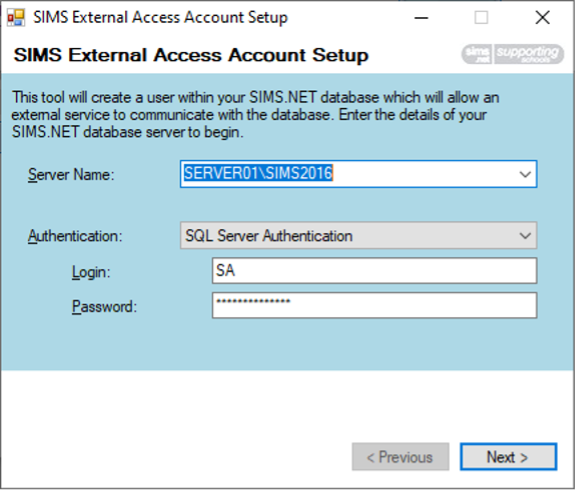
Choose Authentication type - "SQL Server Authentication"
Enter the "SA" credentials in to the Login and Password fields.
Click Next
Choose the SIMS database from the list and click Next
Select "Create a new external access account" and click Next.
Enter a username of your choice e.g. SSMConnect
Click Next
Make a note of the username and password that is generated
Click Close.
SIMS Services Manager
Open SIMS Services Manager via the 'SSM' shortcut on the Desktop
Click on Schools
Click the Edit School button (pencil icon)
Remove the tick from "Use Windows Authentication" and enter the credentials previously created into the Username and Password fields
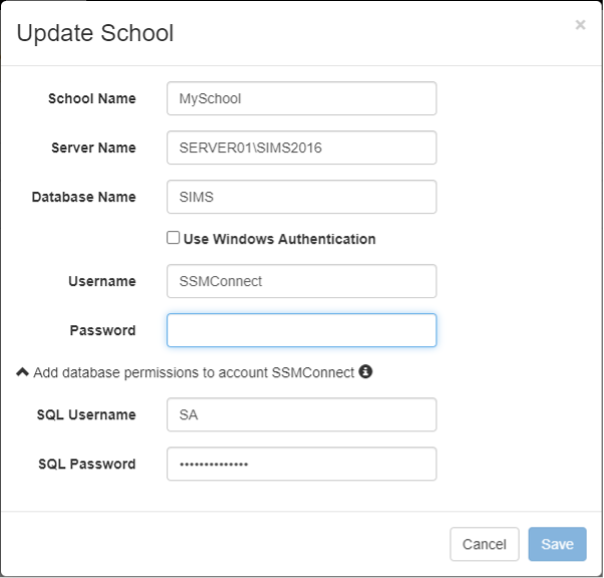
Click the down arrow underneath, next to "Add database permissions to account"
In the SQL Username and SQL Password fields, please enter the SA Credentials.
Click Save. The Status should show a green tick indicating that the connection to the SIMS database was successful.
A warning message will appear at the top of SSM regarding the changes. Click the "Refresh Services" button.
Open the Windows Services via
START | Control Panel | Administrative Tools | ServicesRestart the SIMS Services Manager Service